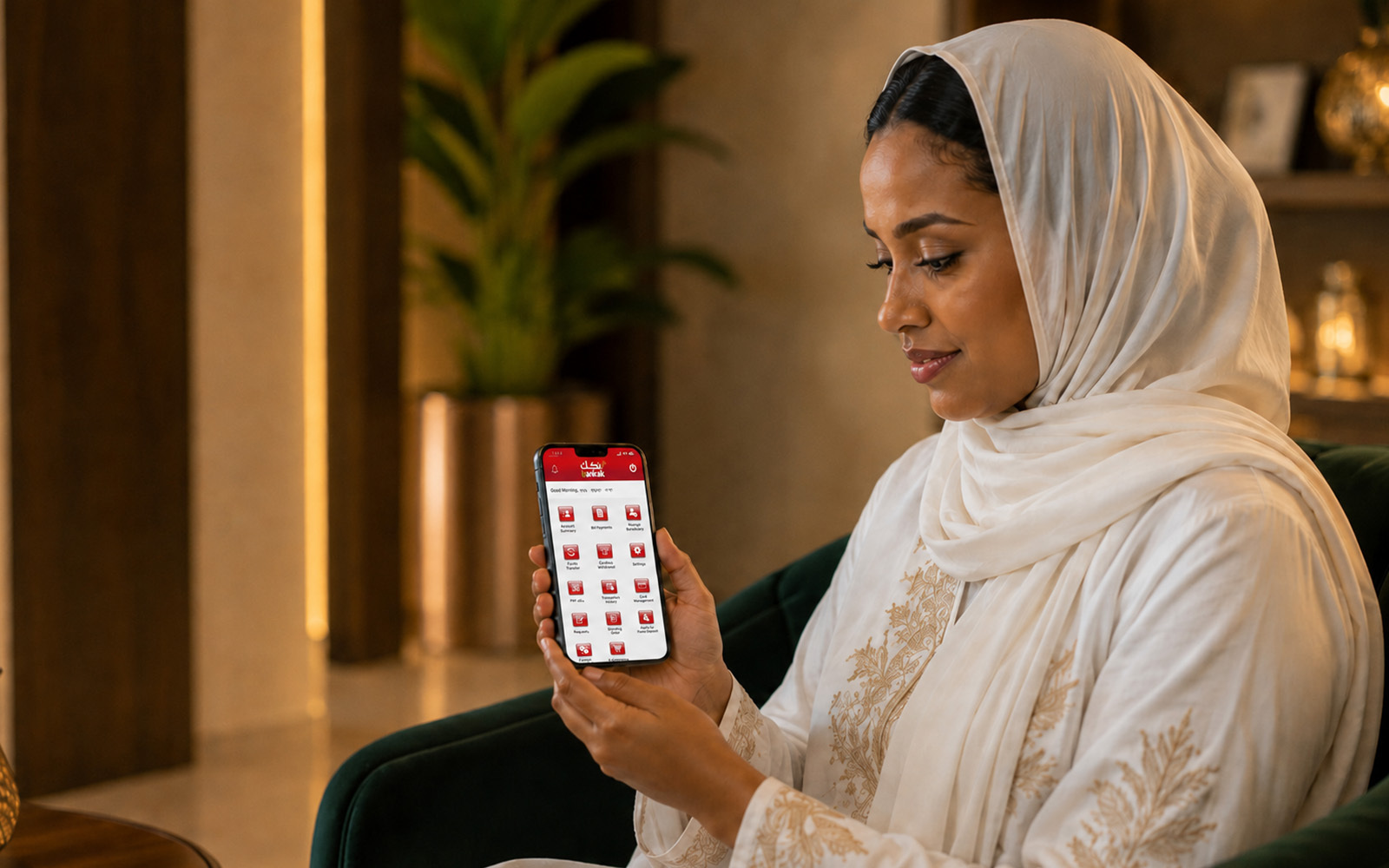
Instant Account Access
Access your account instantly and in real-time from anywhere.


Home > Digital > Bankak
As the leading mobile application in Sudan, Bankak is an innovative app offered by the Bank of Khartoum. It enables our customers to perform financial transactions and access self-services remotely via their mobile devices. The Bankak app from BOK is specifically designed to provide our customers with quick and secure access to their bank accounts and digital wallets. Download now to experience a full range of banking services through the Bankak app.
Access your account instantly and in real-time from anywhere.
Safeguard your account with immediate notifications for every transaction.
Enjoy flexible daily limits of up to SDG 15,000,000.
Conveniently review and share your account information and statements.
Check your account balance and download statements at your leisure.
Transfer funds between your own bank accounts or to other BOK accounts.
Use the "Bankak | PAY" QR code payment method for purchases at any Bankak | PAY shop or BOK Wakeel location.
Withdraw cash without a card using OTP, or send funds to someone who can collect cash at a BOK ATM or BOK Wakeel shop.
Save beneficiaries for fund transfers or bill payments to simplify frequent transactions.
Access payment services for utilities and bills to Zain, Sudani, MTN, Esaly, Cashi, Rita PAY, and more.
Quickly open a Fixed Term Deposit account and take advantage of some of the highest interest rates available from Sudanese banks.
Set up Standing Orders for regular and scheduled fund transfers.
Conduct foreign currency transfers and exchanges with a flexible daily limit.
Resolve wrong transfer transactions swiftly through notifications and instant reversals.
Manage password resets and update your registered mobile number and email address directly within the app.
Efficiently oversee your BOK ATM cards.
The service is available in both Arabic and English.
Types of payments available in Bankak - Mobile Banking
Transfer funds instantly to your or any other BOK bank account, to another Bank Account (by card), to a cash card or even to any BOK mobile money or other mobile money account.
You can also save the details of the beneficiary for future transfers by using the Add Beneficiary option on the transaction completion screen.
Any customer who wants to complain about a wrong fund transfer from his/her BOK account will be he can easily submit a request through the app to notify the receiver about the wrong fund transaction.
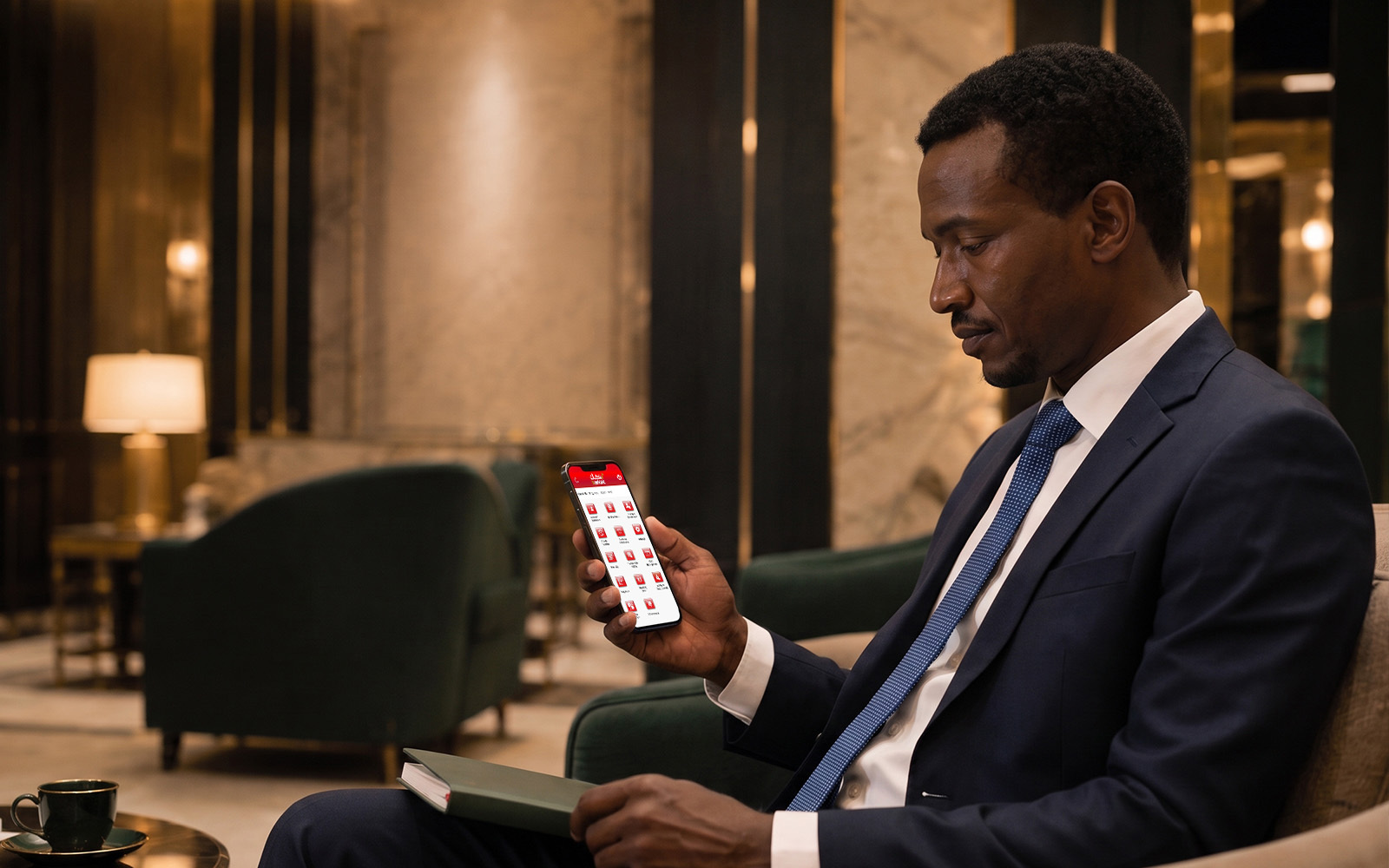
Transfer funds instantly to your or any other BOK bank account, to another Bank Account (by card), to a cash card or even to any BOK mobile money or other mobile money account.
Now BOK introduces a new service Cardless Cash Withdrawals.
For BOK Wakeel, you can send up to a max SDG 50,000 per transaction.
Now all Bankak Mobile Banking customers can apply and subscribe for their Fixed Term Deposit Accounts within 1 minute using Bankak Mobile Banking.
Click the Apply for Fixed Deposit button
Review all Terms and Conditions of apply for the Fixed Deposit Account
select I agree to the Terms and conditions
Click the Agree button
Select from the Account you want to deduct from
Select TD Period (1Month, 3Months, 6Months or 12Months)
Enter the amount
Select Auto Renewal (Yes or No)
If Yes, you can select to add profit to the new Created FD account; else the profit will be added to the TD source account.
Click the Confirm button
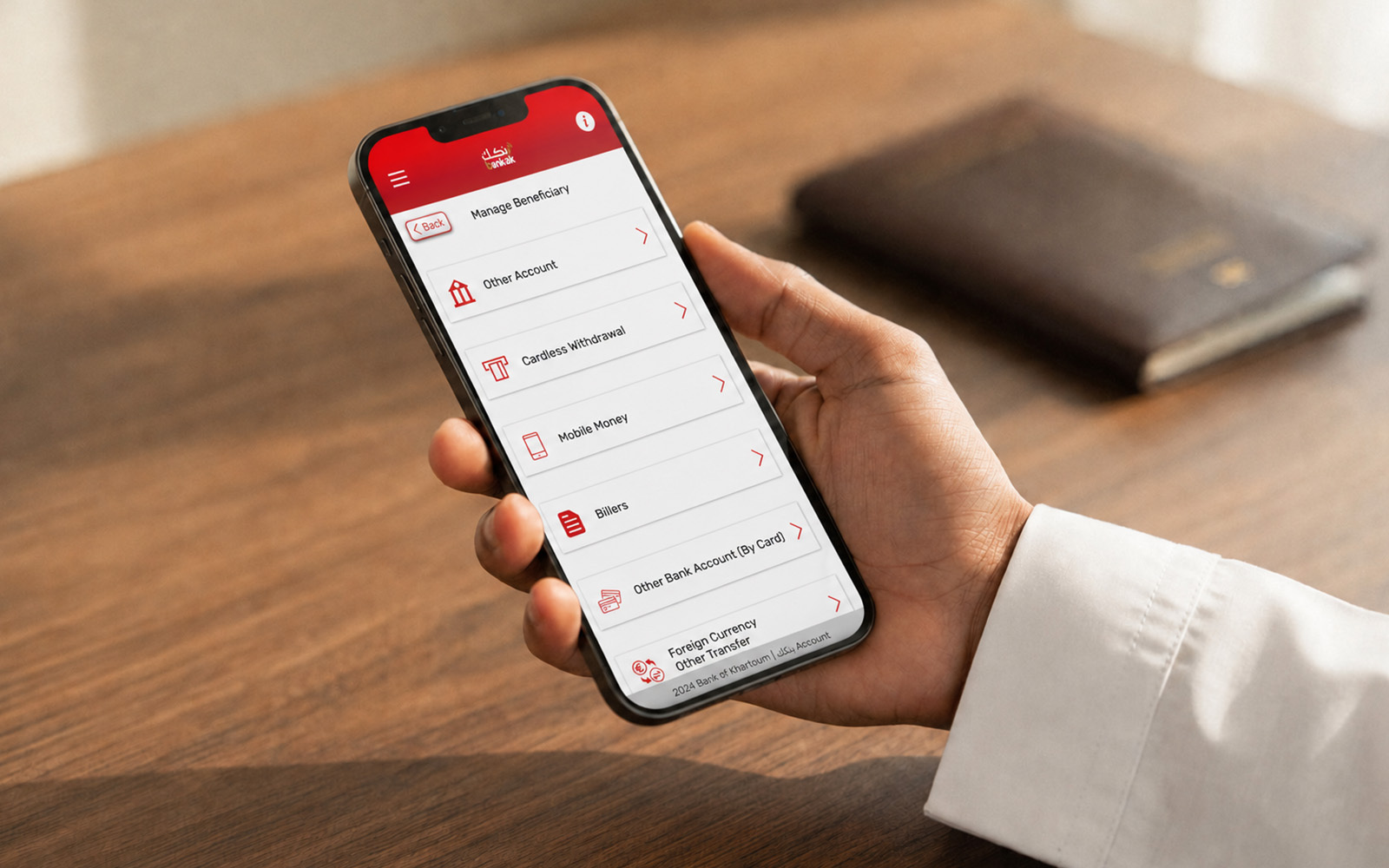
Add, save, and manage beneficiary details in Bankak so future transfers can be completed faster and more securely.
Click the Manage Beneficiary button
Select Add Beneficiary
Choose the beneficiary type
Enter CIF, account number, or scan the beneficiary QR code
Review the beneficiary information
Confirm the details and save the beneficiary for future transfers
Transaction Limit/History/Fees: This feature shows the transfer transactions done using the Bankak application and shows the amount of the daily limit of the transaction.
| Service Name | Daily | Limit Per Transaction/Daily | Fees |
|---|---|---|---|
| Funds Transfer Own Account within BOK | SDG 15,000,000 | SDG 3,000,000 | Free |
| Funds Transfer Other BOK Account | SDG 15,000,000 | SDG 3,000,000 | SDG 100 Per Transaction |
| Other Bank Transfer (BBAN) | SDG 5,000,000 | SDG 5,000,000 | 1-10,000 SDG: 250 10,001 - 100,000 SDG: 350 100,001 - 1,000,000 SDG: 450 |
| Cardless via BOK ATM | SDG 50,000 | SDG 5,000 | 1000-20000 SDG 100 20001-30000 SDG 200 30001-50000 SDG 300 |
| Cardless via Wakeel Agent | SDG 50,000 | SDG 50,000 | 1000-20000 SDG 100 20001-30000 SDG 200 30001-50000 SDG 300 |
| Bill Payments | As Per Bill | As Per Bill | SDG 100 Per Transaction |
| Mobile Banking - Annual Maintenance | No limit | No limit | Free |
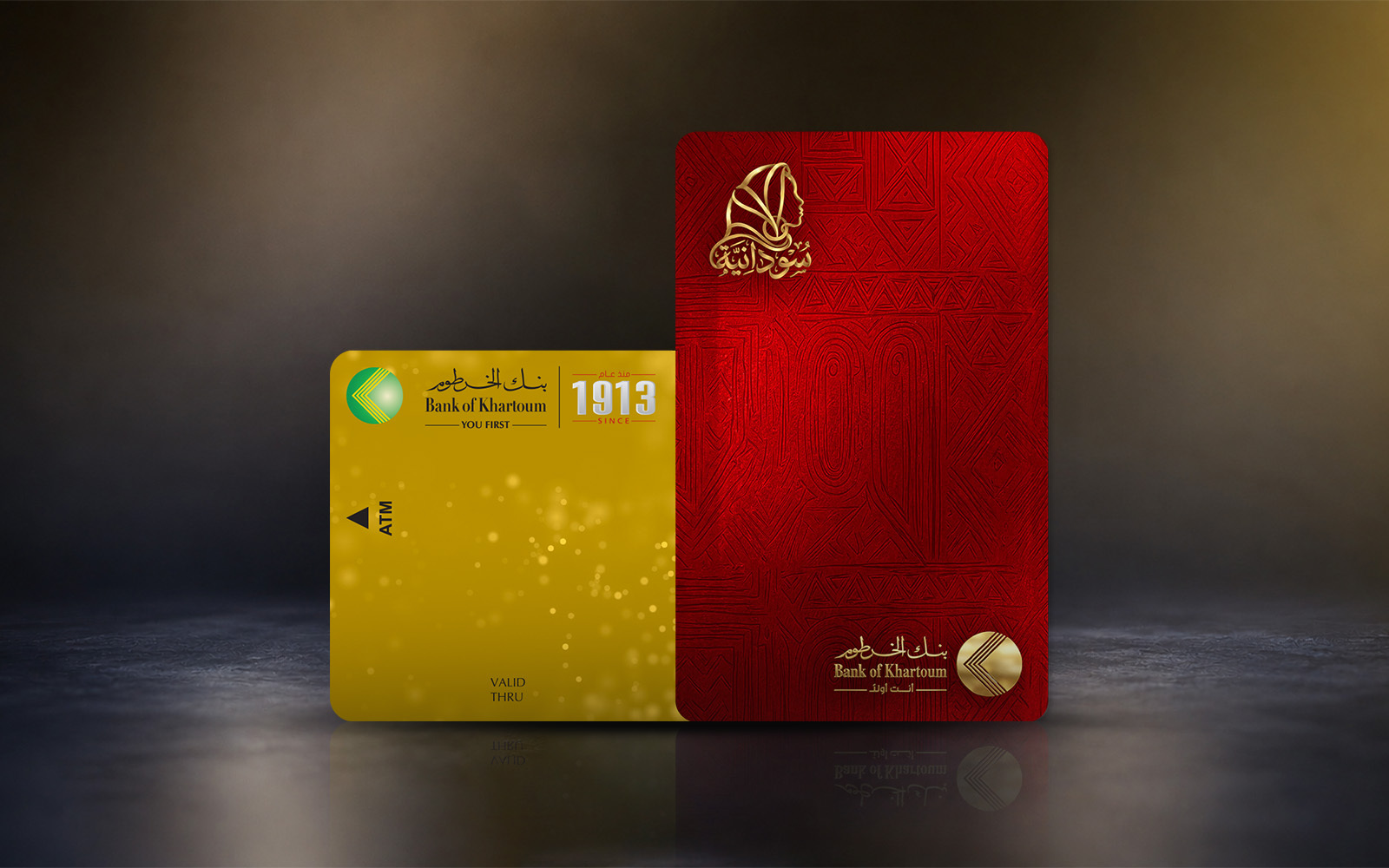
Efficiently manage your BOK ATM cards through Bankak Mobile Banking and keep control of your card services whenever you need.
Click the ATM Card Management button
Select the card you want to manage
Review the card details and current status
Choose the required card service
Activate or deactivate the selected card when needed
Confirm the request from Bankak Mobile Banking
It helps to request the verified account certificate, account balance certificate and request for the Account Certificate
Click the Requests button
Click Account Certificate Request
Select account
Click the Submit button
Click the Requests button
Click Balance Certificate Request
Select account
Click the Submit button
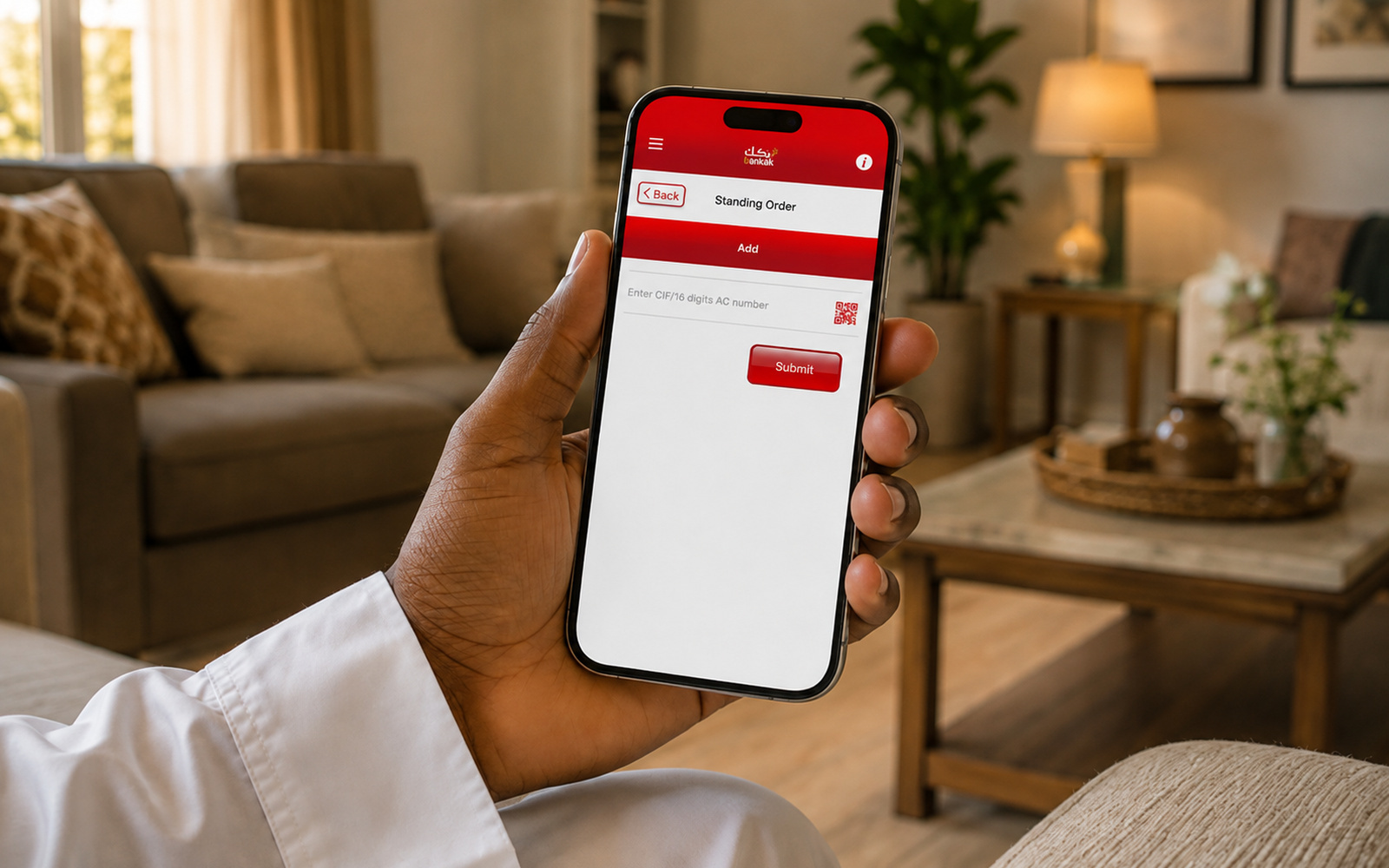
Set up regular transfers from Bankak by following these steps.
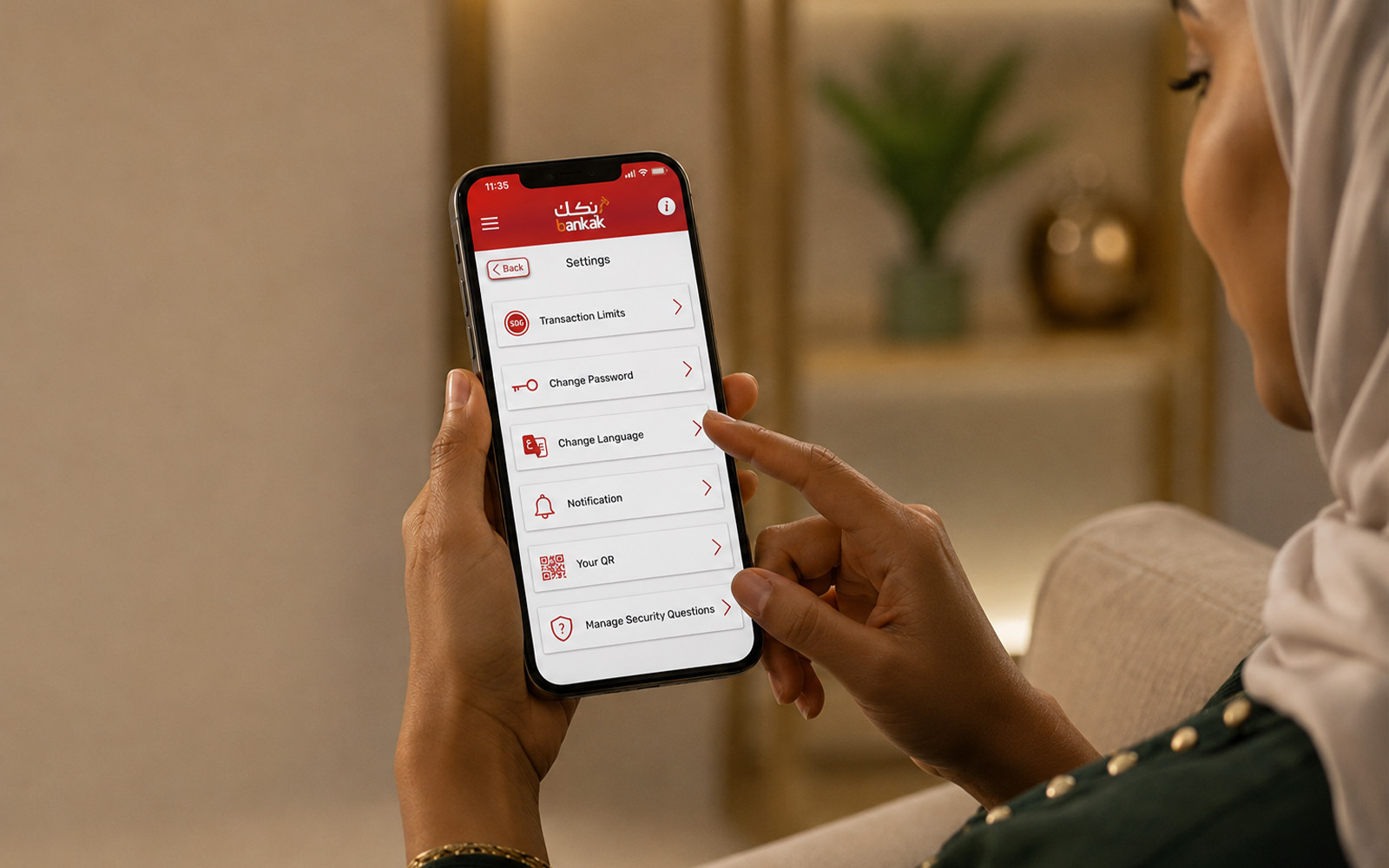
This app has an option for English and Arabic language and you can change the current password of the Bankak app login also you can turn on or off notifications of SMS and E-mail for the transactions made.
Note: Your password must have: 8 or more characters, upper and lower letters, at least one number and one special character.
Note: By Manage Security questions customers will be able to reset & access his/her Bankak Account in case of forgetting the password without the need to call the call centre.
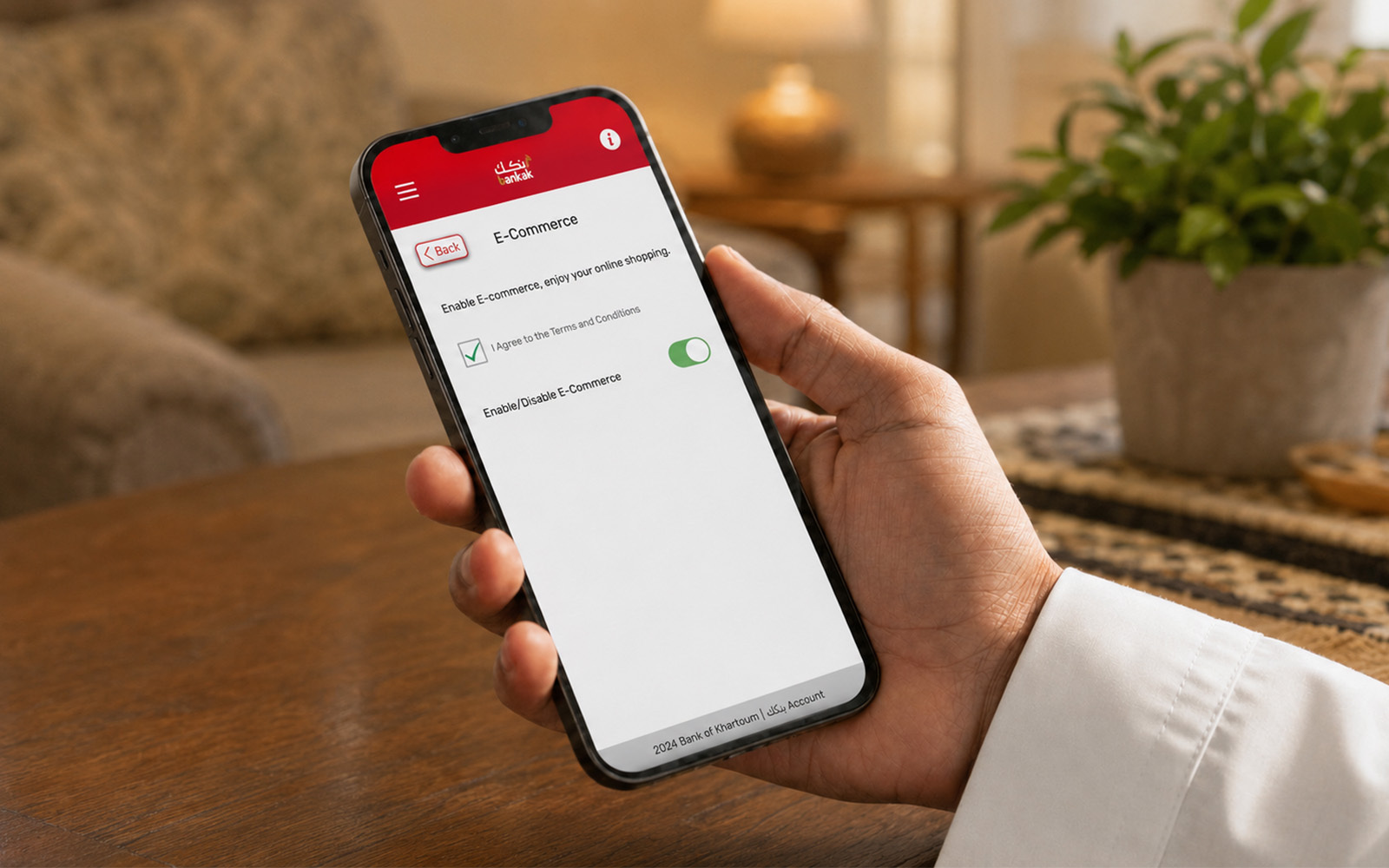
Use Bankak services to manage online payment access and support secure digital purchases with your eligible BOK card.
Click the E-commerce button
Select the card you want to use for online payments
Review the service details and terms
Confirm the request to activate or manage e-commerce access
You can also save the details of the beneficiary for future transfers by using the Add Beneficiary option on the transaction completion screen.
To register using your bank account, call Mubasher at +249187040600/1913 for verification and activate your Bankak account. You will receive an SMS instantly with your temporary password to log in to the app.
Once logged in, please change the temporary password, set your password, and enjoy Bankak!
To download the latest version of Bankak, visit:
Android Store: V-4.51 (Released on 18-June-2025)
Apple Store: iOS version 4.4 (Released in June 2025)
For assistance, please get in touch with Bankak's Facebook Page.
Read Bankak account terms and conditions.
IMPORTANT Security Tips For Using Bankak